Time Tracking in ActivityWatch

When you work remotely all day, you often need to understand how much time you spent on a particular task. Are you using your computer time sensibly, or getting stuck on social media without noticing?
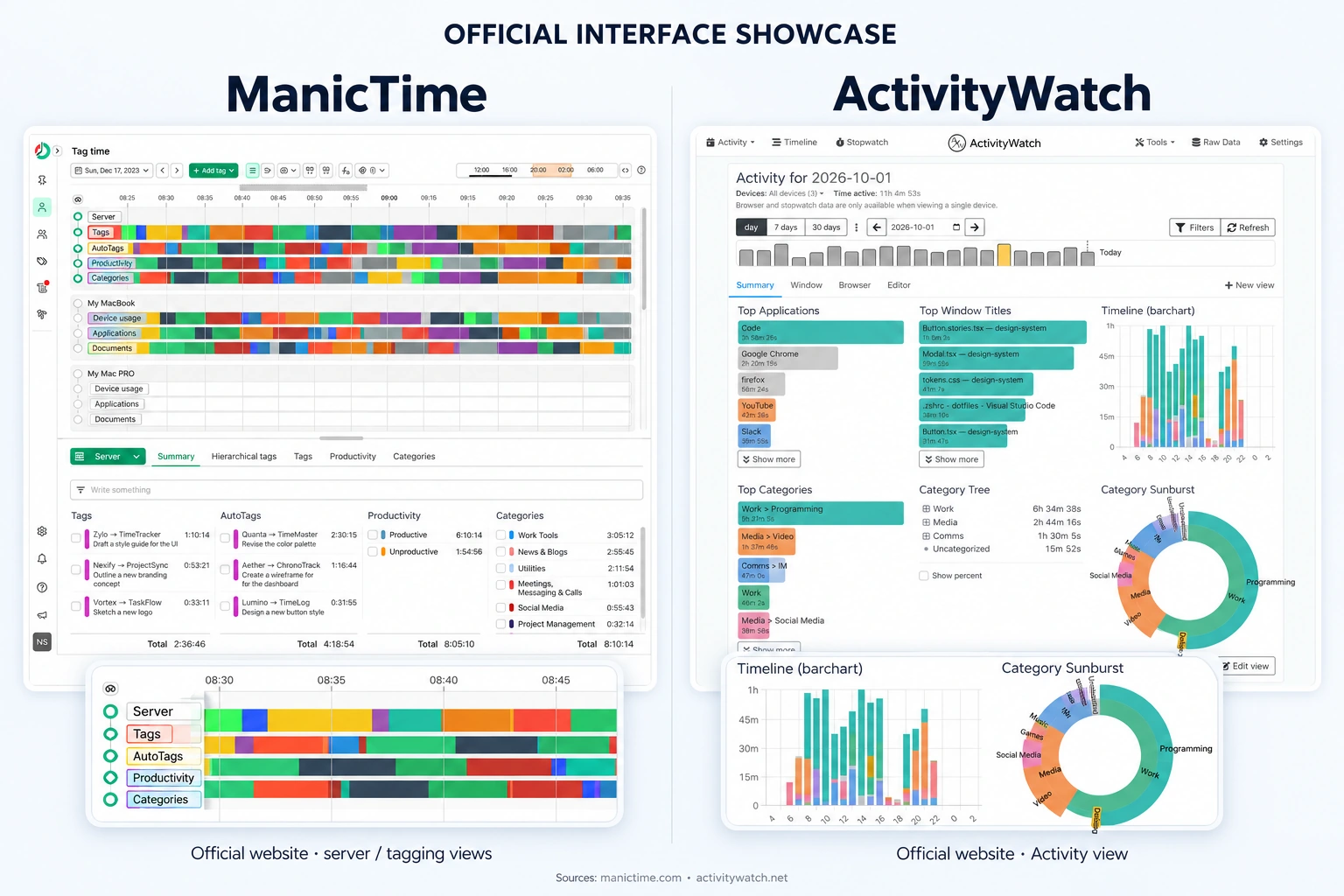
For quite a while, I used only ManicTime. Its free version always covered my needs. Filter by the application you used to open your remote desktop, and you get the total time spent working.
Why I wanted a change
Question: If ManicTime worked for you, why change anything?
Answer: I always saw an empty Tags row in ManicTime and realized tags could make counting time easier. But in the free version, I had to add them manually to a particular day's timeline. Automation required the paid version, and I wanted to set up my own attribution rules.
Question: Why use tags if counting time was already easy?
Answer: When you work on a remote server, filtering by the connection application is enough to get your working time. But when you work locally, one project spreads across all sorts of software: work chats, 2D and 3D packages, documents, Figma links, and cloud render farms. At that point, you want to bring those records together under one project rather than count each application separately.
That was when I decided to try ActivityWatch, which I had seen before but hadn't paid much attention to.
ActivityWatch automatically records which applications and windows I use, just like ManicTime. Its standard interface didn't quite fit my needs, though, so I built my own dashboard on top of it: ActivityWatch Projects. ActivityWatch collects the records, while my dashboard groups them into projects and activity types and displays the results in a way that works for me.
Rules also apply to previously recorded history: set them up once, and you get time attribution for past days within the dates you specify. There's no need to tag each day again. All the data stays locally on my computer.
What do I gain?
The main benefit of switching is full control over how I filter the data. I can also quickly and precisely configure the grouping rules. I built two independent, parallel classifications:
- By project. These are paid projects, freelance work and other tasks, or separate categories for personal activities. Together with unassigned records and time that needs review, they add up to all recorded active time. Idle time isn't counted.
- By activity type. This counts time spent on different activities, whether that's scrolling TikTok or talking to an LLM. These tags don't affect project totals, and each is counted independently.
The two classifications don't affect each other. A given interval can belong to only one project, but it can have several activity-type tags. If two projects claim the same interval, it goes to review rather than being added to both.
For example, an hour in a work chat belongs both to a particular project and to the Messaging type. That lets me see how much time went into the project and how much of it was spent communicating. The hour still counts as one hour: the two classifications don't double the total.
And because project time is now tracked so clearly, I can get all the time figures for a project with practically one click.
A few words about the charts
The interface has two main sections.
The upper section is for working with the recorded activity. It lets me create groups and tags and makes it easier to find anything my classification rules haven't picked up yet.
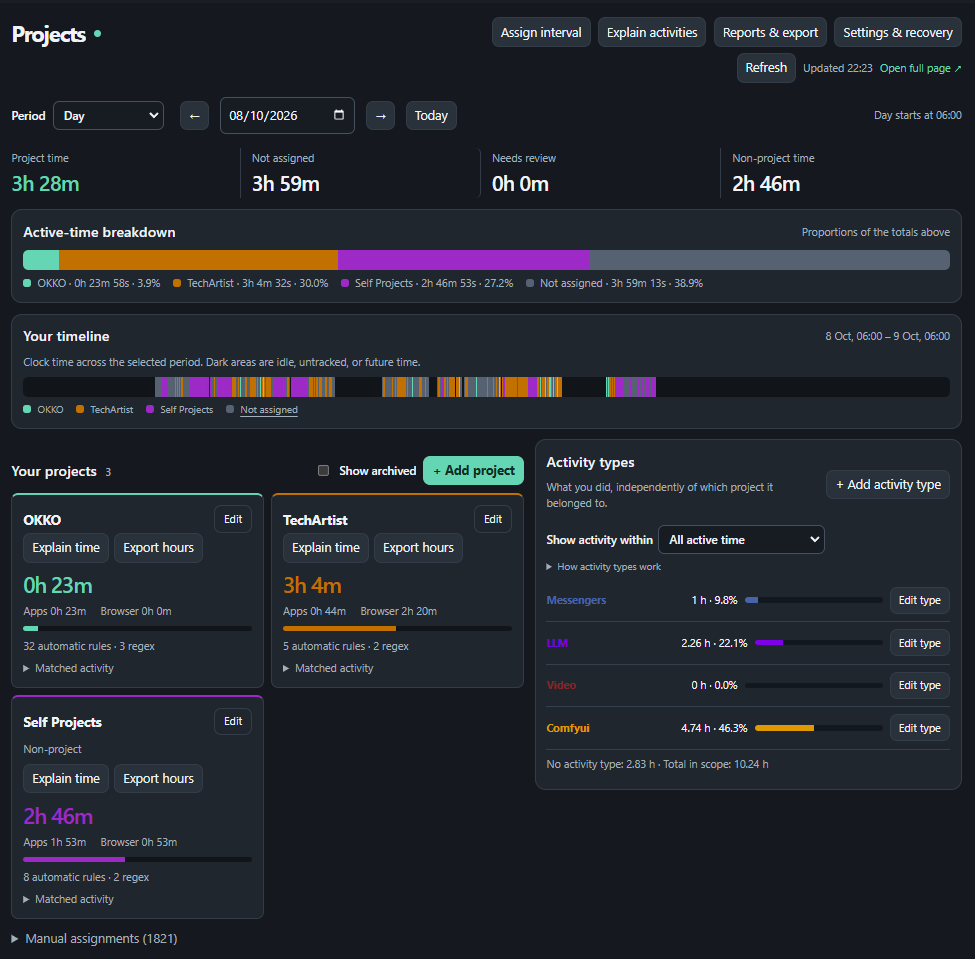
The lower section is for insight. It's a chart where you can quickly review your hours and see what you're doing wrong in life. Or, perhaps, what you're doing right.
Implementation
Activity is recorded automatically, but the software doesn't know which windows, websites, and files belong to my projects. First, I need to define attribution rules. The interface offers several ways to do that, starting with broad rules and moving toward specific cases.
A typical setup process
- Create a new entity: a project or a tag. Initially, it's empty and doesn't affect the totals.
- If you've already worked on the project for a while, you know the folders, filenames, and applications involved. That's the information used to categorize the records.
- Each entity can have start and end dates. This lets you define software usage in broad strokes. For example, if I used Krita only for this project during a particular week, I can simply specify the application, and its time within those dates will count toward the project.
- Next, enter the titles that belong to the project or tag. You can use plain names or regular expressions, with a preview of the matches.
- After setting up broad rules, you can assign a project or tag to individual records that those rules didn't catch.
What each panel is for
Let's go through the screen from top to bottom: first the day's overview, then projects and activity types, and finally workload over a longer period.
Period and total hours
At the top, you select a day, week, month, or custom date range. The panels below show data for that period. Four figures immediately tell you how much time went into work projects, how much is still unassigned, how much needs review, and how much belongs to activities outside work projects.
Time breakdown and timeline
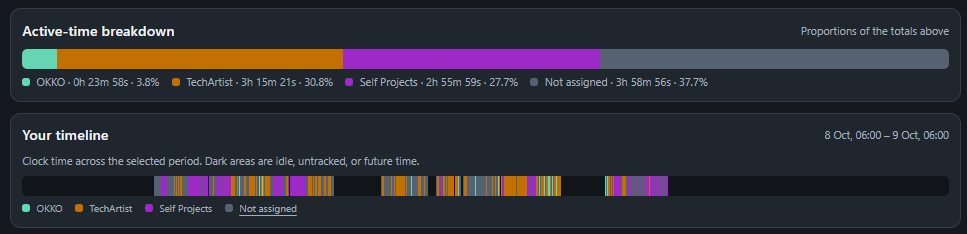
Active-time breakdown shows each category's share of active time. Your timeline shows when I worked on it. Both panels use the same colors, making it easy to connect the overall share with individual parts of the day. Dark gaps in the timeline represent idle time, time without records, or time that hasn't happened yet.
What's still unassigned
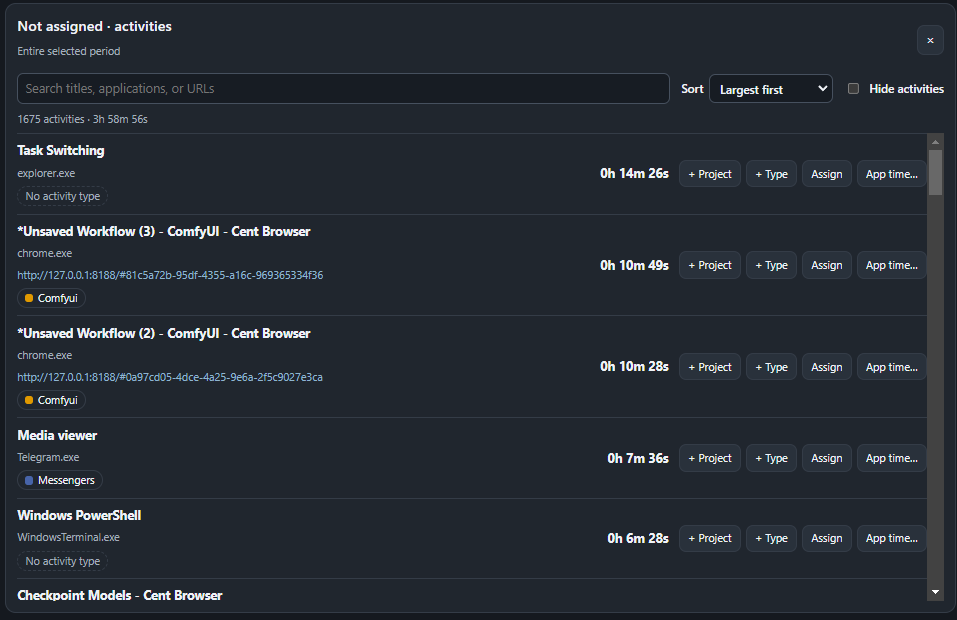
Clicking Not assigned opens records that haven't found a project yet. You can bring the longest ones to the top and handle them first. From each row, you can add a project rule (+ Project), an activity-type rule (+ Type), or assign time manually (Assign).
You can filter the records and choose one of two sorting options: longest first or newest first.
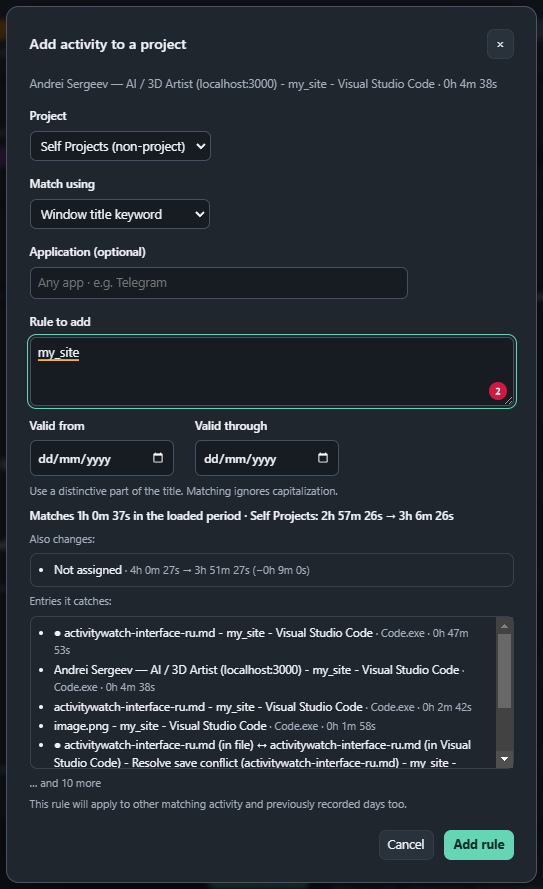
For example, I select a project and a distinctive word from the window title. Before saving, I can already see which records the rule will match and how the hours will change. The rule also picks up matching records from past days within the specified dates.
Project cards
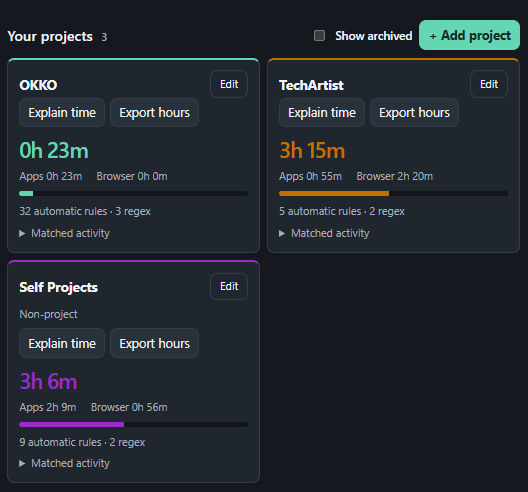
Each card is a separate project: total time, how much came from applications and the browser, and a list of matched activities. Explain time helps me understand where the hours came from, Edit opens the settings, and Export hours opens the report export.
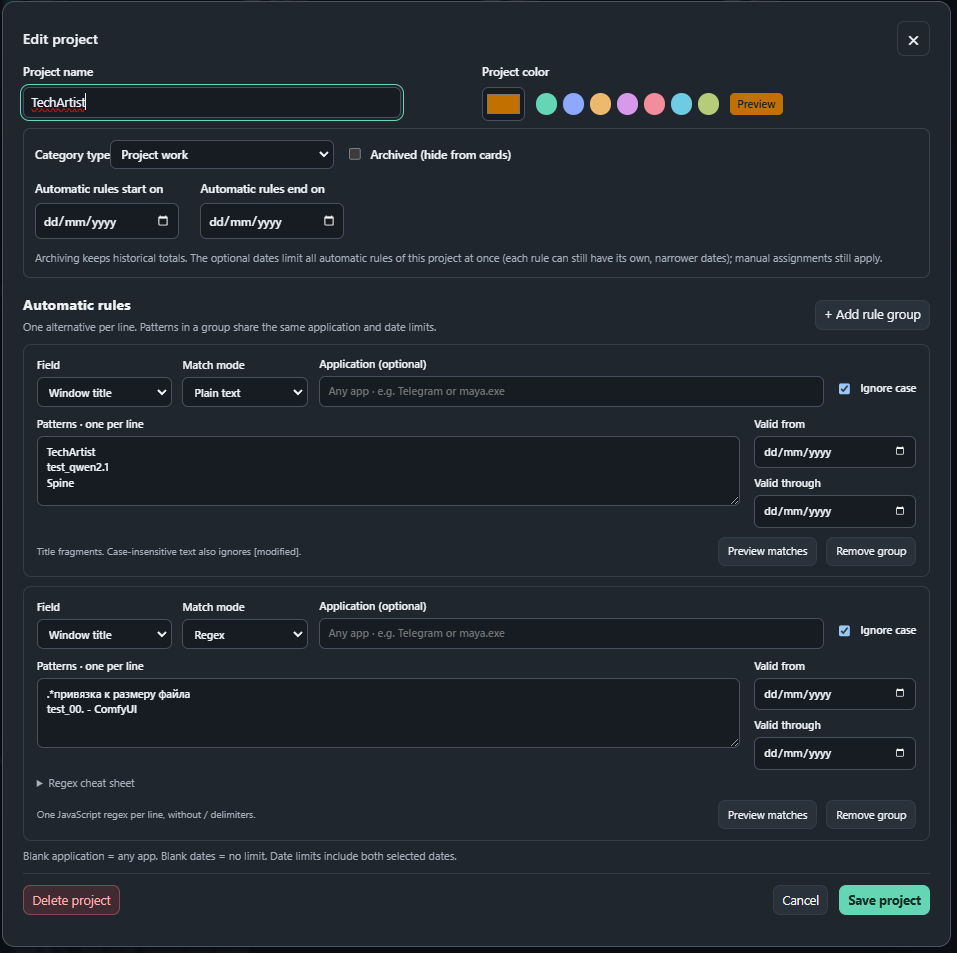
The settings define the name, color, category, and rules. You can match window titles, website addresses, or editor data, and limit a rule to a particular application and dates. Preview matches lets you check the results before saving.
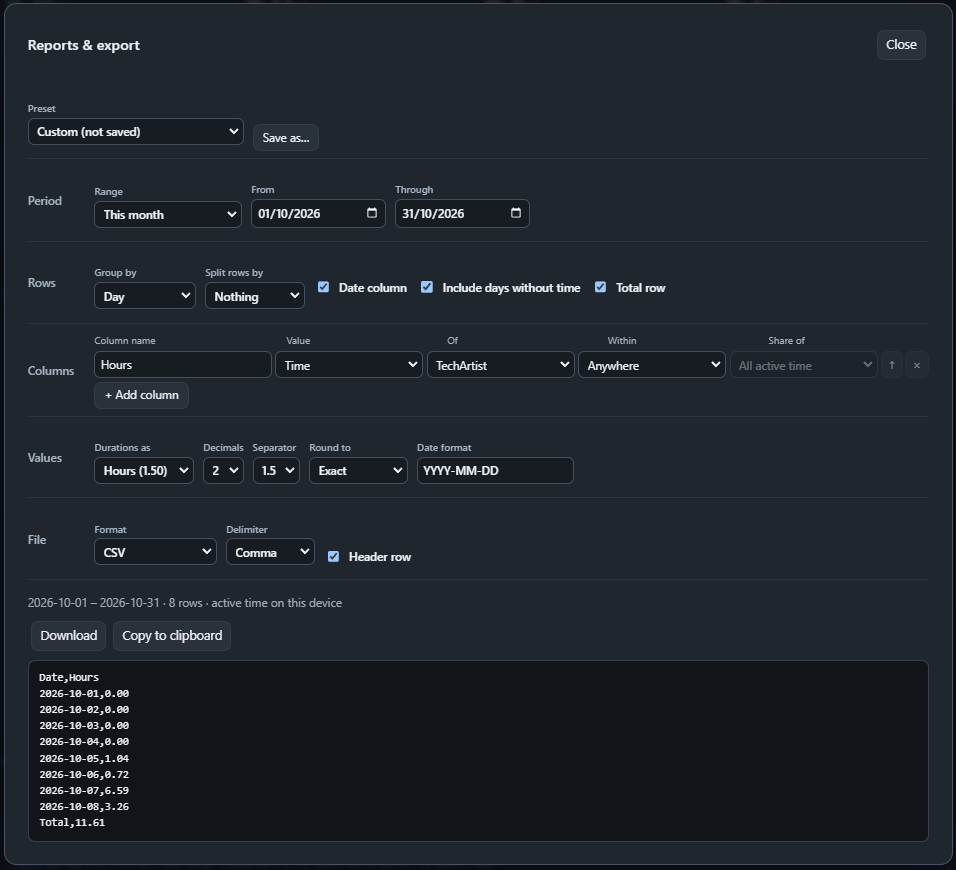
In the report, you select the period, rows, and columns you need. The simplest option is a date and the project's hours for each day. You can download the result or copy it into a spreadsheet, and save a useful configuration for future reports.
Activity types
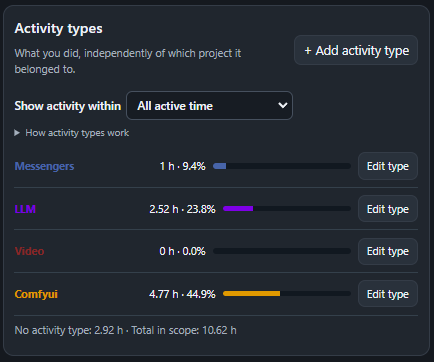
This panel answers a different question: not which project I worked on, but what I was doing. It separately counts messaging, video, LLM use, and any types I define. In Show activity within, you can select all active time or a particular category to see, for example, how much communication happened within a work project. Types can overlap, so their percentages don't necessarily add up to 100%.
Manual assignments
Below the cards is the collapsed Manual assignments list. It contains intervals I assigned to a project by hand. This is useful for one-off cases where creating a separate rule doesn't make sense. Manual assignments take priority over automatic rules.
Daily workload
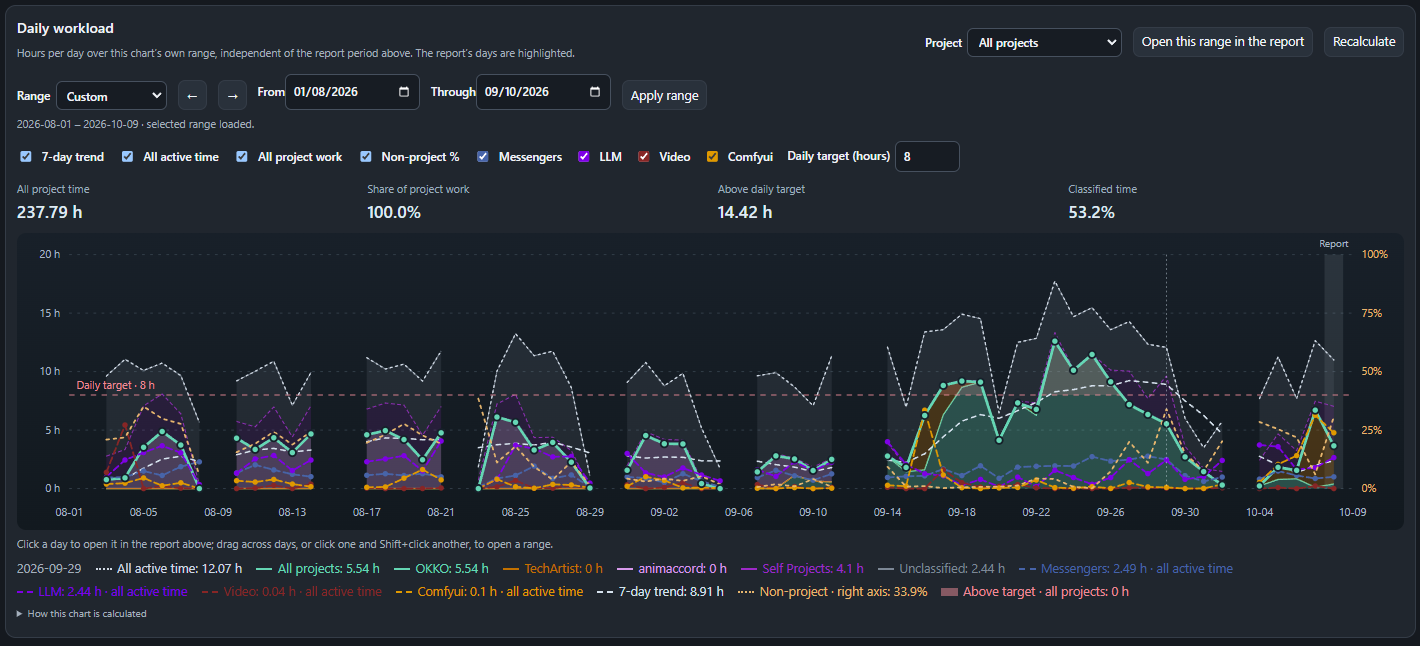
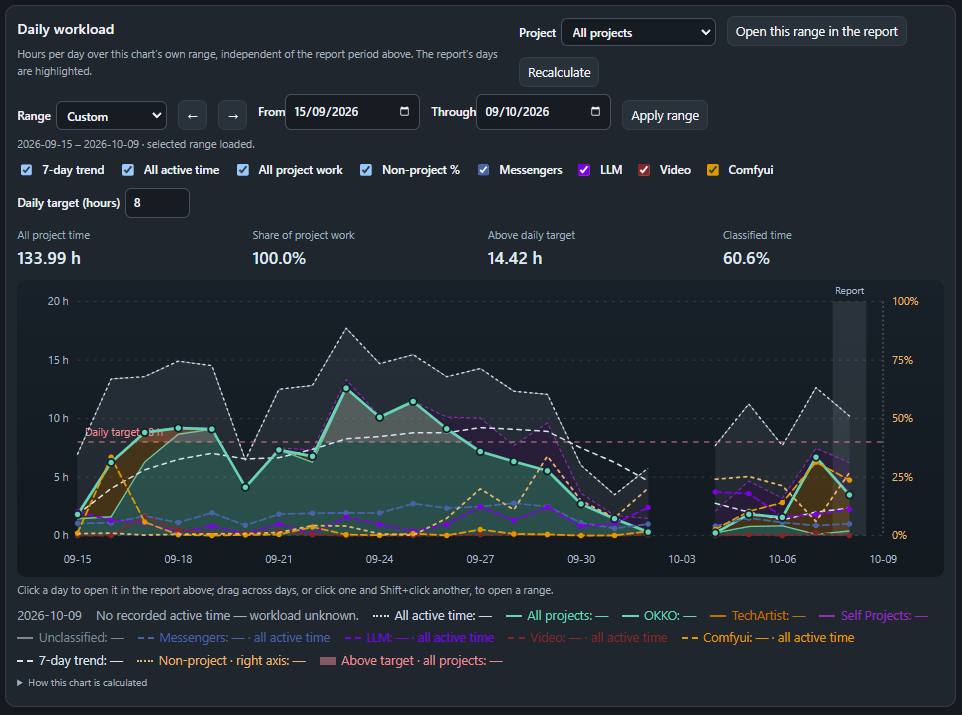
At the bottom is Daily workload: how many hours accumulated each day and where they went. The chart has its own period, independent of the upper panels. You can select one project or all of them, turn individual lines on and off, and compare the workload with a daily target.
For example, the OKKO project (the large green peak on the right of the chart) shows that I worked through the weekends. The workload didn't change dramatically in the middle of the project, but communication clearly increased as the deadline approached.
The seven-day trend helps reveal the overall workload pattern behind individual spikes.
Clicking a day opens it in the upper report. You can also select several days and examine the entire interval. That makes it easy to go from the overall chart to the specific records I want to check.
I'm still developing the project: finding inaccuracies, fixing them, and adding missing functionality. I'll be glad if someone else finds it useful!